
Documents
Documents created or maintained by any university division, department, sponsored student organization, or individual acting in their capacity as a university employee must meet the accessibility requirements of WCAG 2.1, Level AA. In addition to general accessibility requirements for web content, documents posted on university websites must be structured to be usable by individuals who rely on screen readers, keyboard navigation, screen magnifiers, or other assistive technology.
Why Document Accessibility Matters
Documents function as extensions of web pages. When a document is inaccessible, users may be unable to locate information, navigate sections efficiently, understand content structure or meaning, or interact with tables, images, or form-like layouts.
Accessibility begins at the authoring stage and must be built into the document before it is posted on the web. While some issues can be corrected after export, most accessibility problems originate in the source file.
Microsoft Word Document Format and Accessibility
Document Properties
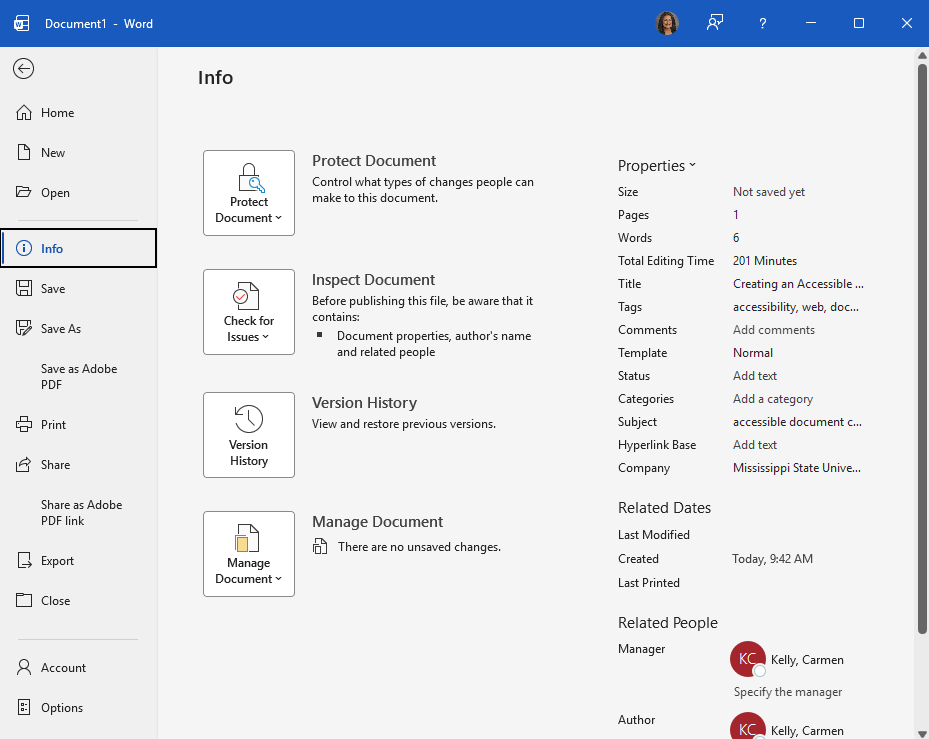
Document properties provide context to screen reader users and improve file identification. To ensure the document is accessible, add a meaningful title and complete the author, subject, keywords, and other metadata. To edit document properties in Microsoft Word, go to File > Info. On the right side, you can click on fields like Title, Tags, or Author to add or update them. For more detailed information, select the Properties dropdown menu and choose Advanced Properties to edit custom fields, summary details, and view file statistics.
Headings and Document Structure
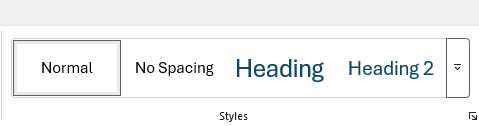
Headings create navigational landmarks and define the document's organization. To create headings, use built-in Word Styles (Heading 1, Heading 2, and Heading 3); follow a logical hierarchy (do not skip heading levels); do not rely on font size, bold, or color alone to indicate headings; and customize styles if needed, but do not replace them.
Paragraph Spacing and Layout
Visual spacing created manually can disrupt reading order. Use paragraph spacing instead of extra returns; insert page breaks instead of pressing enter repeatedly, and avoid empty table cells, rows, or columns.
Hyperlinks
Use descriptive link text that explains the destination or purpose so that links can be read independently by a screen reader. Make sure to avoid vague language like "click here" and add ScreenTips when additional context is helpful. Highlight the document text that you want to make a hyperlink. Select the Links menu on the Insert ribbon. Select Link from the context menu. Enter the full URL for the existing file or web address in the Address field and click Ok to finish.
Example: Use language that provides descriptive or contextual language: View our accessibility guidelines
Avoid using the direct URL as the text: www.web.accessibility.msstate.edu
Images, Non-Text Content, and Tables
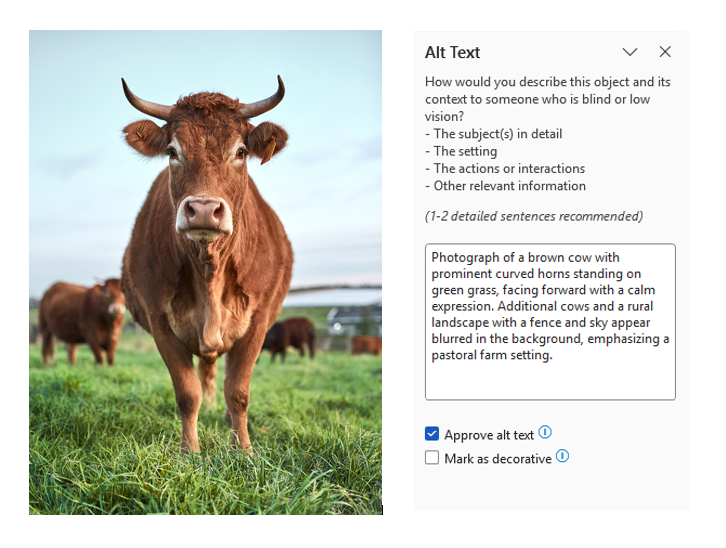
All meaningful images must include alternative text. Add alternate text to photos, charts, diagrams, icons, and graphs to describe the purpose or information conveyed, not just the appearance. Mark non-contextual imagery as decorative, and avoid text images whenever possible.
Tables must be navigable and understandable without visual cues. When creating tables, use simple, linear tables, identify header rows and first columns when appropriate, and avoid using merged or split cells. Do not use tables for layout purposes only, and avoid complex or nested tables. For complex data, consider using HTML content or an alternative document format.
Color, Contrast, and Visual Cues
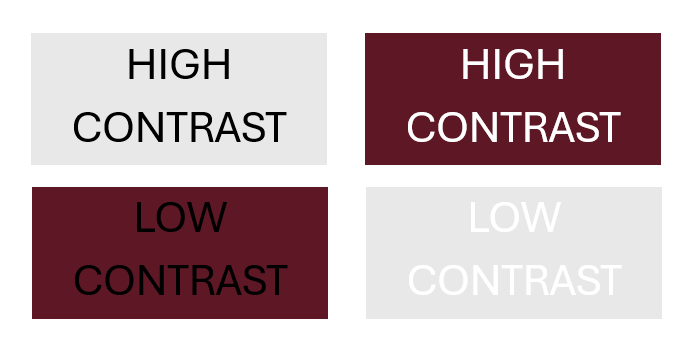
Visual meaning cannot rely on color alone. Ensure sufficient contrast by using a lighter background and darker text, do not convey meaning by using color only (e.g., "items in red are required"), and make links visually distinguishable beyond color, such as with an underline.
Word Accessibility Check
Accessibility issues are easiest to fix before exporting. To run an accessibility check in Microsoft Word, choose File, Info, Check for Issues, and Check Accessibility. Address all errors and review all warnings, fix issues directly in Word whenever possible, and use Read Aloud to listen for reading order and clarity issues.
Exporting an Accessible PDF
When the Word document is accessible, the PDF created from it is far more likely to be accessible. While it is best practice to refrain from using a PDF to convey information, there are some cases where a PDF is necessary.
When is it Appropriate to Use a PDF Document
Appropriate usage of a PDF includes a document that has been created and checked in Microsoft Word or properly remediated and checked as a PDF.
Documents appropriate for PDF format are static in nature and intended for reading or printing
- Policies, reports, fact sheets
- Forms designed for printing and offline completion
- Documents requiring a fixed layout where the content order must remain consistent across devices
- Publication-style materials, such as brochures or annual reports, when accessibility requirements are met
Documents not appropriate for PDF format consist of content that can be delivered in a source document or web format
- Content that is frequently updated
- Instructional or step-by-step content
- Complex data or tables
- Content intended for interaction
- Scanned or image-only documents
PDF Accessibility and Remediation
Just as Word documents require proper structural tags, PDFs must also include structure to be accessible. To do this:
- Tag all text with headings that reflect a logical hierarchy
- Verify that lists and paragraphs are properly identified
- Remove any decorative elements from the reading order
- Make sure the reading order is from top to bottom, left to right, for standard body text, multi-column layouts, sidebars, callouts, and text boxes (both visually and programmatically)
- Ensure that alternative text is applied to images and tables
- Ensure that color contrast is sufficient, decorative images are marked appropriately, and charts and graphs convey equivalent information to users who cannot perceive them visually
- Ensure that tables include correctly tagged header rows, with subsequent rows announced in a logical order, and avoid complex or nested table structures
Testing and Quality Review
Automated tools alone cannot guarantee accessibility. However, utilizing the Adobe Acrobat Accessibility Check can be a great place to start with remediation. After reviewing and fixing flagged issues and warnings, it is best practice to verify reading order and headings manually with a keyboard for navigation testing. There are also tools available to read aloud PDFs to confirm that the structure of the document is sufficiently tagged for screen readers. However, if major structural issues are found, return to the original Word document, correct them there, and re-export the PDF.